
Running a business in a technology-driven world is not easy. Most businesses have built websites and tools to ensure they not only keep up with the ever-changing digital business landscape, but also provide their customers with a seamless buyer experience. For small to medium-sized enterprises (SMEs), leveraging technology can be complex and quite time-consuming.
Most SMEs have their own website; however, many have found a loophole and use social media platform WhatsApp as their digital storefront. WhatsApp provides various benefits for SMEs and acts as a marketing platform and accessible customer service desk.
According to the Meta’s Impact in South Africa report, 910 000 South African SMEs used Meta’s apps — Facebook, Instagram, WhatsApp, Messenger, Meta AI, and Threads — to start and grow their businesses in 2025, contributing R47,9 billion to GDP, with instant messaging across Meta’s apps saving them an estimated R21,5 billion by making communication faster and cheaper.
Thanks to the growth of the platform, businesses can use WhatsApp Business for selling instead of just normal WhatsApp. With over 96% of local internet users utilising the app, it drives massive local economic value, allowing small businesses to bypass traditional website drop-offs and achieve open rates of up to 95%.
In this article, we look at what exactly WhatsApp Business is, how it works for SMEs, and give you a step-by-step guide on how to set up your business catalogues on the platform.
What is WhatsApp Business?
WhatsApp Business is a free-to-download messaging app designed for small and medium businesses. It allows companies to interact directly with customers using professional tools to automate, sort, and quickly respond to messages, as well as showcase products via digital catalogues.
Key Features of WhatsApp Business
WhatsApp Business has a vast range of tools that help you manage customer conversations more smoothly, without changing how your customers get in touch. Here’s how the main features work, and how they can help SMEs.
1. Increase Trust with a Detailed Business Profile
The business profile is the digital storefront. You can include your company name, logo, contact details, website, address, and opening hours, and make it all visible to customers at a glance. For local businesses, that profile instantly signals legitimacy.
2. Set up Automated Greeting and Away Messages
When you can’t respond straight away, whether you are with a customer or closed for the day, automated messages help you stay responsive. On WhatsApp Business, you can set a greeting or away message to let people know their enquiry has been received, and when they’ll hear back.
3. Faster Responses with Quick Replies
When customers ask about delivery times, opening hours and booking details, it can be overwhelming. Instead of typing the same answer to multiple people, WhatsApp Business enables you to save them as quick replies and send them instantly with a shortcut.
4. Organise Conversations with Custom Labels
Labels help you keep track of different types of chats such as new enquiries, confirmed bookings, or follow-ups. You can create your own categories and tag each conversation accordingly. This way, you can sort your inbox by label and avoid missing a message, especially when things get busy.
5. Sell Your Products With In-app Shopping
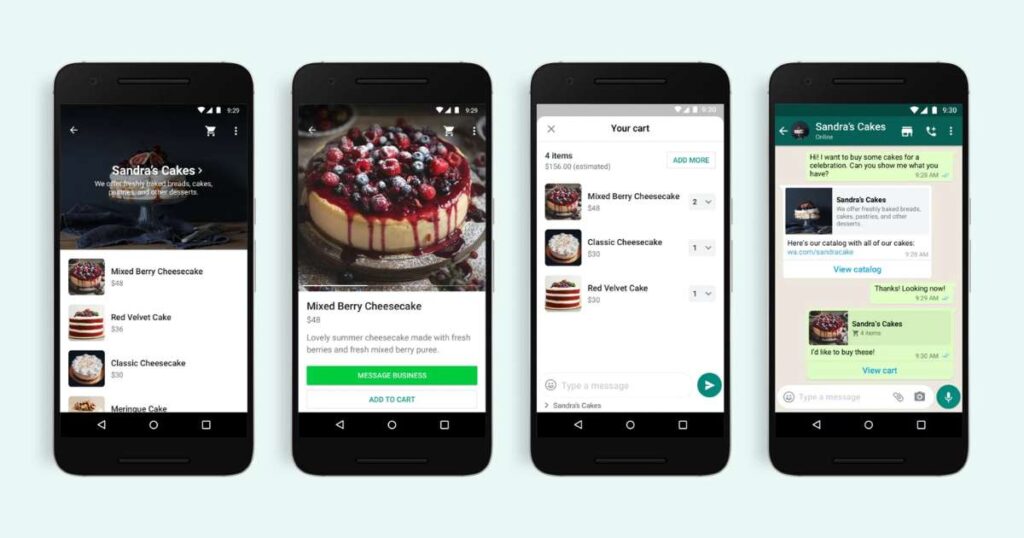
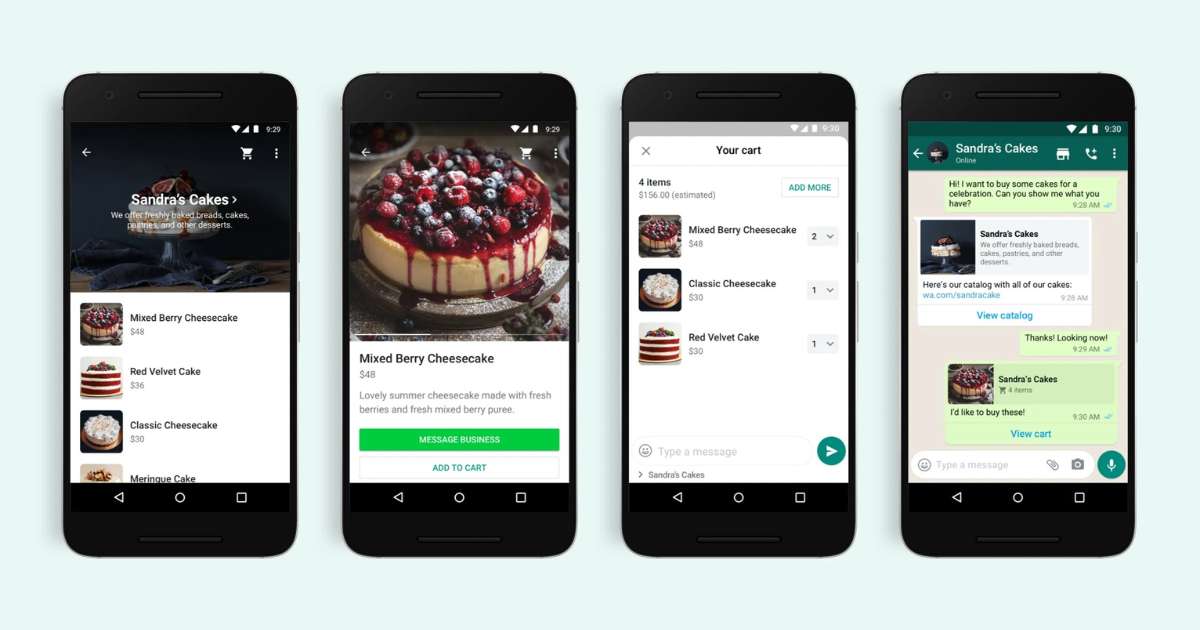
The catalogue feature on WhatsApp Business enables you to showcase your products or services directly in your WhatsApp profile and conversations. Customers can scroll through your listings, view photos, prices, and descriptions, and then message you about a specific item, all without leaving the app.
6. Access to Business Analytics
The WhatsApp Business app includes simple analytics to help you understand how your messages perform. You can see how many were sent, delivered, read, and replied to, providing a rough sense of how engaged your customers are. This will also help you see how accessible and user-friendly your WhatsApp storefront is.
7. Boost Traffic with Ads
If you run ads on Meta platforms Instagram or Facebook, you can link them to WhatsApp, allowing customers to message you directly. Instead of clicking through to a website or filling out a form, they tap ‘Send Message’ and start a chat. It’s fast, informal, and much more likely to convert casual interest into a real enquiry, especially for local services or quick questions.
Setting Up Your WhatsApp Business Catalogues
Your product catalogues are critical to ensuring your customers can shop seamlessly on your WhatsApp Business profile. Here are the steps to follow when setting up a catalogue on WhatsApp Business using an Android device.
Add a Product or Service to Your Catalogue
Step 1: In the tools tab, open the catalogue tools. Once there, you will see an option to add a new item.
Step 2: Once you have clicked on ‘add new item’, you will be able to upload images and videos of the product.
Step 3: To add images and videos, you need to give WhatsApp access to your phone gallery. From there, you select the pictures or videos you need. Optionally, you can take new pictures directly from the app by accessing your phone camera.
Note: You can upload up to ten images or videos. The size limit for a video is 50 MB. Video thumbnail images are automatically generated when a video is uploaded and cannot be edited at this time.
Step 4: From here, you will begin to enter the product details. The first step is to enter the product or service name.
Step 5: You must enter the country of origin. This is basically the country from which your business operates or where the item is made. You must select the country of origin when adding a new item or editing an existing catalogue item.
Step 6: Now, you will enter additional details. This includes price, sale price, description, website link (if applicable) and product/service code. After entering the details, you can click ‘save’.
Every image and video uploaded to the catalogue is subject to a review, which confirms that the image, video, product, or service meets the WhatsApp Business Messaging Policy. Catalogue items are only visible once they have been approved.
If you believe one of your items was wrongly rejected, you can appeal the decision as follows:
- Tap on the rejected items
- Tap on ‘request another review’
- Enter the reason for the request
- Tap continue
If your item is still rejected after appealing, you can send a message directly to Meta explaining your request for a third review.
WhatsApp Business is an ideal platform for SMEs, acting as a digital ‘pocket storefront’. It can help you meet customers where they are and access a large number of potential customers. Ensure that your catalogues are optimised, pictures and videos are clear and that your descriptions are clear for customers.
Running a business in a technology-driven world is not easy. Most businesses have built websites and tools to ensure they not only keep up with… Read More